

The Amazon Merchant Token ID is an important identification number for Amazon Sellers. It’s a way for Amazon to be able to uniquely identify each one of its third-party sellers, allowing you to be able to access Amazon’s extensive Marketplace Web Service (MWS).
This ID is vital to your operations because it allows you to use Amazon’s services and allows you to create unique URLs for your products. But how do you find it?
So, Where is My Amazon Seller ID?
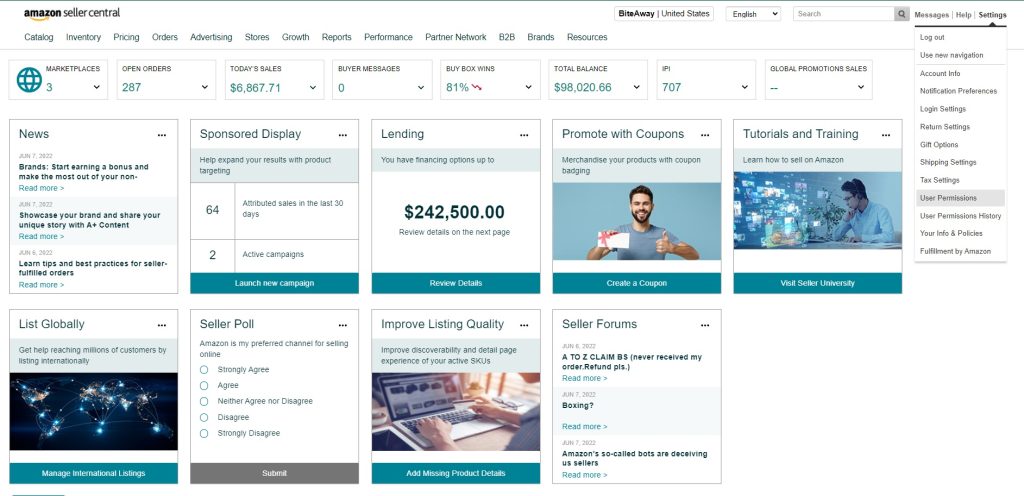
Your Amazon Seller ID is a string of letters and/or numbers that can be found in the URL for your products, or your storefront. You can log into your Amazon Seller Central account to view your Seller ID.
Step-By-Step Instructions: How Do I Find MyAmazon Seller ID?
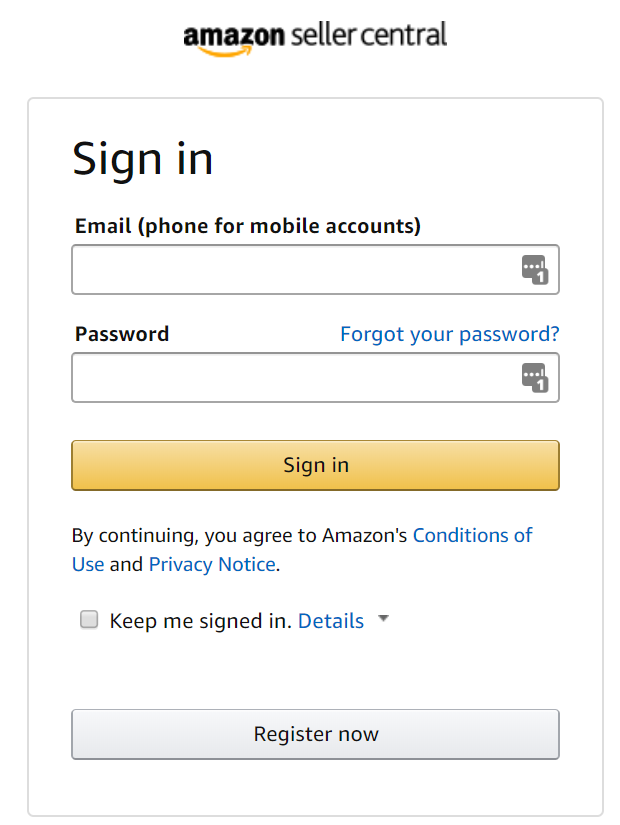
Step 1. Log into Amazon seller central
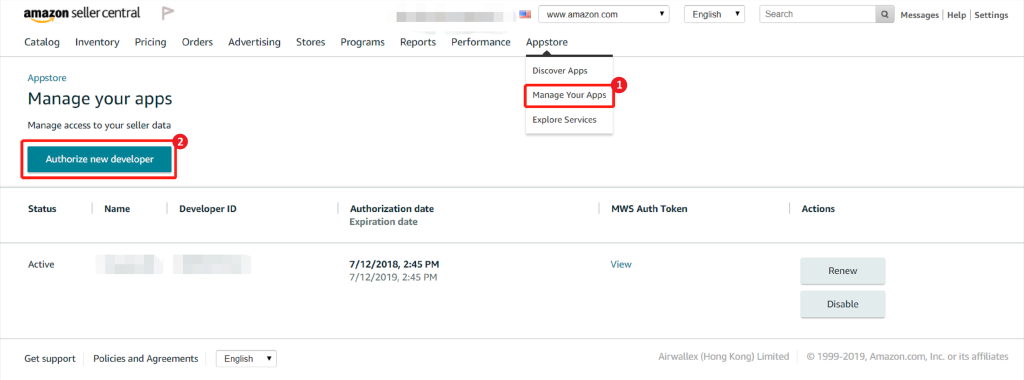
Step 2. Go into settings → User Permissions → Manage Your Apps → Authorize a Developer.
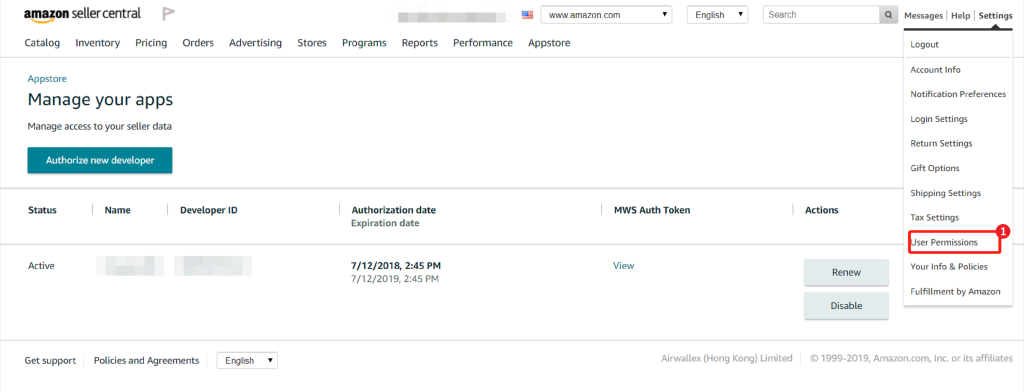
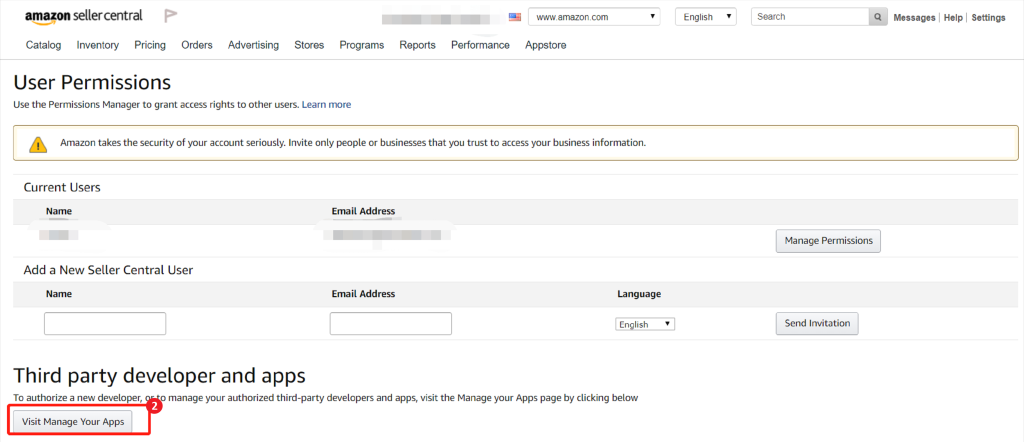
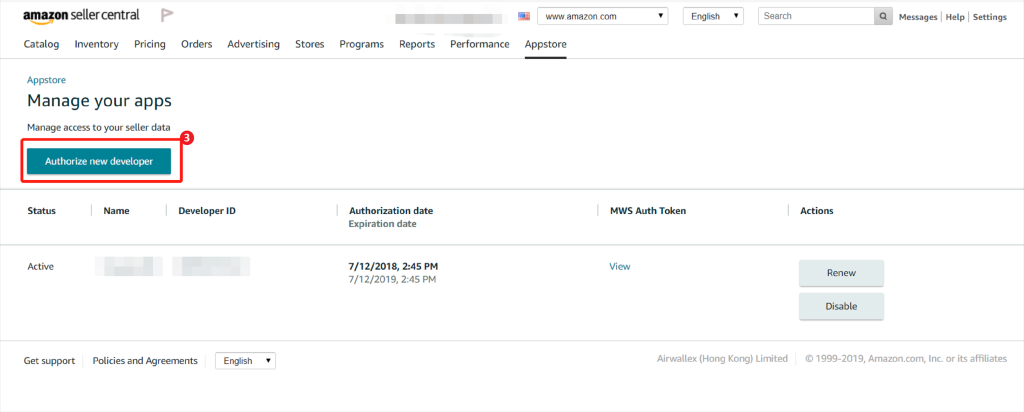
(Alternatively, you can go to the App Store → Manage Your Apps → Authorize a Developer.)
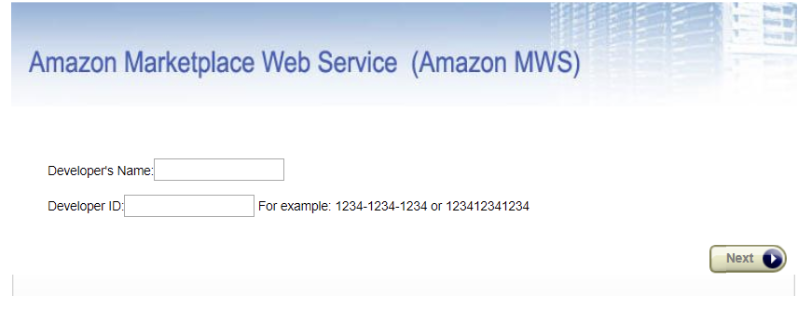
Step 3. Enter the Developer Name and ID
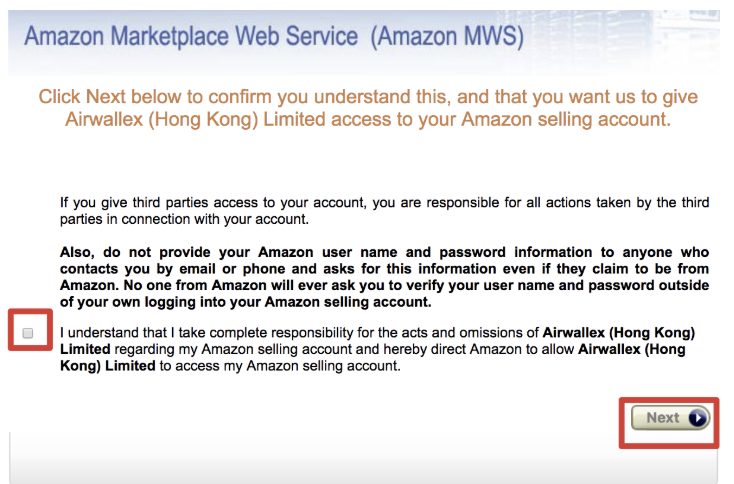
Step 4. Tick the checkbox and then the next button
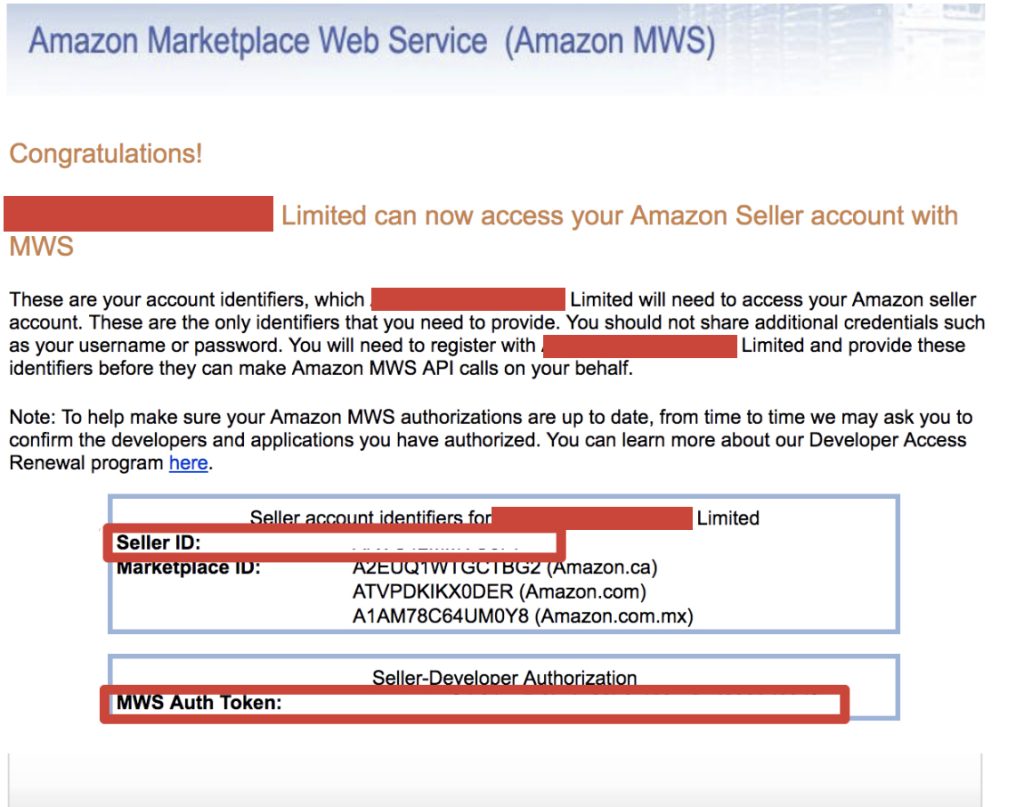
Step 5. You’ll see your seller ID and MWS authorization token displayed on the page
Can’t find your Seller ID? Let’s chat.
80+ in-house specialists across PPC, supply chain, account management and content.
How to Find My Merchant ID on Amazon?
The fastest way to find your Amazon Merchant ID is by going to your Amazon Storefront’s URL. You can find the link to your storefront either by going into Seller Central or by going to one of your product listings.
Click the link in the “sold by” Section, then the link that says “[Seller Name] Storefront”. In addition, then, to get your Merchant ID, just copy the string of numbers after “me=”.
Is My Merchant Token Same as Seller ID?
To put it simply, yes. An Amazon Seller ID, also known as a Merchant Token or Merchant ID, is a set of letters and numbers that Amazon assigns to your account.
The seller ID is assigned to you to help Amazon’s internal Marketplace Web Services (MWS) for integrating reports, conducting sales, managing orders, and handling payment data to a specific account.
This system also allows buyers to purchase your product and send those funds into your account.
How to Find My Merchant Token on Seller Central?
To find your merchant token, simply follow these steps:
Step 1. From your seller account, go to the Settings menu and select Account Info.
Step 2. From the Business Information section, click on Merchant Token. Furthermore, the token can be found at the bottom of the page.
Need help finding your Seller ID? Click here to get started.
Day-to-day Seller Central operations handled for you: catalog health, cases, compliance and buyer messages.
Want more of this in your Google results? Add SellerPlex as a preferred source.